
Explanation
오늘은 React Native로 UI를 만들어 보려 합니다. 처음에 'React Native가 React를 알면 도움이 된다'라는 이야기를 듣긴 했는데요, 막상 직접 사용해보니 깜짝..
정말 그냥 React를 import해서 사용하니까, 정말 친숙하게 다가갈 수 있었답니다.
역시 일단은 예제 소스를 만들어서 깃헙에 올렸습니다.
예제 코드: https://github.com/falsy/blog-post-example/tree/master/react-native-example
간단하게는 지난 글에서 설치한 디렉토리에서 ./App.js와 ./src/ 디렉토리만 복붙해서 보셔도 될 거 같아요.
우선 시작하기전에 만들어 본 UI를 실행하면 아래와 같은 UI가 출력된답니다.
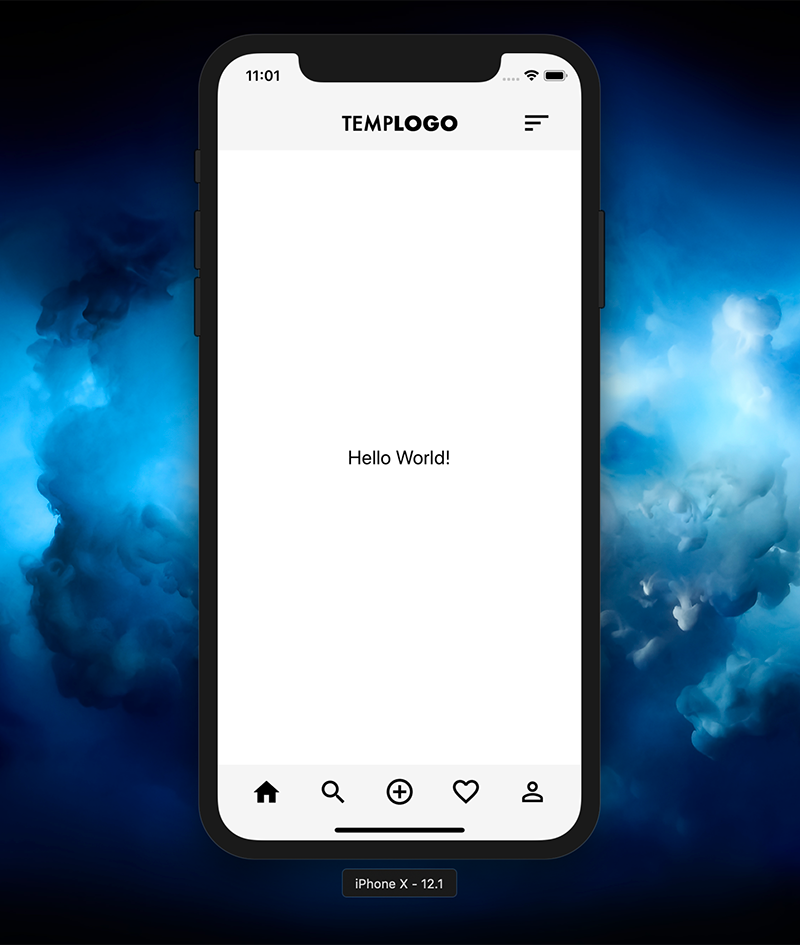
뭐 되는건 없지만 나름 그럴싸하죠?ㅎ
일단 기본적으로 React가 익숙하시다면 구조가 전체적으로 아주 친숙하게 받아 들여진답니다. 똑같이 state와 props를 사용하고 필요한 라이브러리들도 npm을 통해서 불러와서 사용할 수 있고요. (redux도 똑같이 사용하실 수 있습니다.) 약간의 차이라면 리액트 네이티브는 DOM을 사용하지 않는 점? 그리고 css를 따로 사용하지 않는 점? 정도인거 같아요.
간략히 코드를 보자면
// ./src/views/Dashboard.js
import React, {Component} from 'react';
import {StyleSheet, Image, Text, View} from 'react-native';
import DashboardFooter from '../components/DashboardFooter';
import DashboardHeader from '../components/DashboardHeader';

class Dashboard extends Component {

  constructor(props) {
    super(props);
    this.state ={
      text: 'Hello World!'
    };
  }

  render() {
    return (
      <View style={styles.wrap}>
        <DashboardHeader />
        <View style={styles.content}>
          <Text style={styles.welcome}>{this.state.text}</Text>
        </View>
        <DashboardFooter />
      </View>
    );
  }
}

const styles = StyleSheet.create({
  wrap: {
    flex: 1
  },
  content: {
    flex: 1,
    justifyContent: 'center',
    alignItems: 'center',
    backgroundColor: '#fff',
  },
  welcome: {
    fontSize: 20,
    textAlign: 'center',
    color: '#000'
  }
});

export default Dashboard
DOM 엘리먼트를 대신해서 'react-native'에서 View, Text, Image 뭐 이런 컴포넌트들을 사용할 수 있어요. DOM 엘리먼트와 비교하자면 View는 div의 느낌이고 Text는 p의 느낌 Image는 img의 느낌으로 사용할 수 있습니다. 스타일도 위 예 같은 경우에는 StyleSheet.create() 통해서 스타일을 정의하고 호출 했는데요.
<View style={{flex: 1}}></View>이렇게도 사용할 수 있답니다. 그리고 스타일 요소들은 아주아주 css와 유사해서 따로 공부하지 않아도 그대로 사용하실 수 있습니다.
그러면 여기에서 알아두면 좋은 스타일 요소가 'flex' 인거 같아요. 대략 이야기하면 절대값으로 지정되지 않은 영역에 대한 상대값으로 이야기할 수 있을 거 같아요. 위 예를 들자면 content의 flex: 1의 값은 너비는 100%를 의미하고 위 코드만으로는 알 수 없겠지만, DashboardHeader 컴포넌트 안에서 가지고 있는 100px과 DashboardFooter 컴포넌트 안에서 가지고 있는 78px를 제외한 높이의 영역을 가지게 됩니다. 그리고 만약에
<View style={styles.content}>
  <Text style={styles.welcome}>{this.state.text}</Text>
</View>
<View style={styles.content}>
  <Text style={styles.welcome}>{this.state.text}</Text>
</View>
이렇게 flex: 1의 값을 가진 2개의 View가 나란히 위치하면 똑같이 너비 100%와 높이는 아까 이야기한 100px 78px 제외한 나머지 영역을 1:1 비율 나누어서 갖게 된답니다.
그리고 다음으로
// ./src/componets/DashboardFooter.js
import React, {Component} from 'react';
import {StyleSheet, Image, Text, View} from 'react-native';
import SafeMargin from './SafeMargin';

class DashboardFooter extends Component {

  constructor(props) {
    super(props);
    this.state = {};
  }

  componentDidMount() {

  }

  render() {
    return (
      <View>
        <View style={styles.footer}>
          <SafeMargin />
          <View style={styles.footerIcon}>
            <Image source={require('../imgs/home-icon.png')} style={{
                width: 26,
                height: 24,
            }}/>
          </View>
          <View style={styles.footerIcon}>
            <Image source={require('../imgs/search-icon.png')} style={{
                width: 24,
                height: 24,
            }}/>
          </View>
          <View style={styles.footerIcon}>
            <Image source={require('../imgs/plus-icon.png')} style={{
                width: 28,
                height: 28,
            }}/>
          </View>
          <View style={styles.footerIcon}>
            <Image source={require('../imgs/heart-icon.png')} style={{
                width: 28,
                height: 25,
            }}/>
          </View>
          <View style={styles.footerIcon}>
            <Image source={require('../imgs/my-icon.png')} style={{
                width: 22,
                height: 22,
            }}/>
          </View>
          <SafeMargin />
        </View>
        <View style={styles.footerIndicator}></View>
      </View>
    );
  }
}

const styles = StyleSheet.create({
  footer: {
    height: 56,
    flexDirection: 'row',
    justifyContent: 'center',
    alignItems: 'center',
    backgroundColor: '#f5f5f5',
  },
  footerIcon: {
    flex: 1,
    alignItems: 'center',
  },
  footerIndicator: {
    height: 22,
    backgroundColor: '#f5f5f5',
  }
});

export default DashboardFooter
여기서 확인할 수 있는 부분은 Image는 저렇게 상대 경로로 require()를 source 속성으로 호출할 수 있다는 것과,
footer: {
  height: 56,
  flexDirection: 'row',
  alignItems: 'center',
  ...
스타일 flexDirection: 'row' 로 하위 요소를 병렬? 정렬할 수 있고 alignItems: 'center' 속성으로 가운데 정렬을 할 수 있다 정도가 있는거 같습니다.
더 많은 스타일 속성들이 있겠지만 그것들은 조금만 검색해봐도 너무 잘 나와 있어서요. 아주 간단히 몇가지만 직접 해보면 어렵지 않게 UI를 쉽게 구성할 수 있습니다~